

Run an event over several days
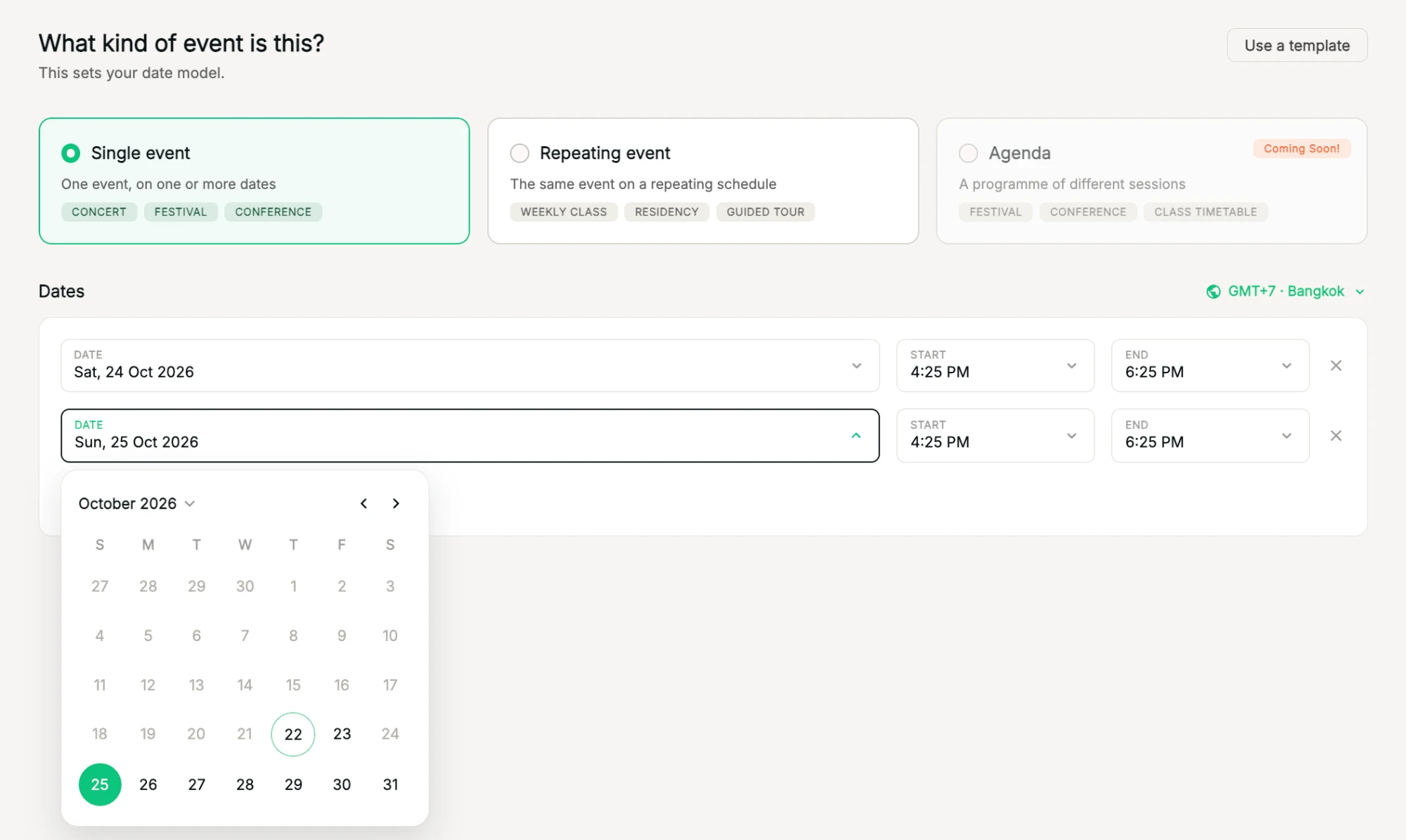
Keep Single event selected and add a date for each day. It stays one event, with one attendee list.
Where to find it: Step 1 → Single event → + Add date
How to do it
- In Type & schedule, choose Single event.
- Set the first date and its start and end times.
- Click + Add date for each extra day and set its times. To remove a day, click × on its row.
- In Tickets, add what people can buy. For each ticket, Valid on sets its dates: keep All sessions for a pass to every day, or tick a single date for a day pass.
Dates stay editable after you publish. See Edit an event after publishing.
Tip: same event every week? Use a repeating schedule instead.
Related
Single, repeating or agenda: which event type?Pick the format that fits: one event, a repeating schedule, or a programme of sessions.Set up a repeating scheduleCreate every date of a weekly class or residency in one go.Edit an event after publishingChange dates, times, tickets or details after your event is live.