

Customise your page colours, fonts and effects
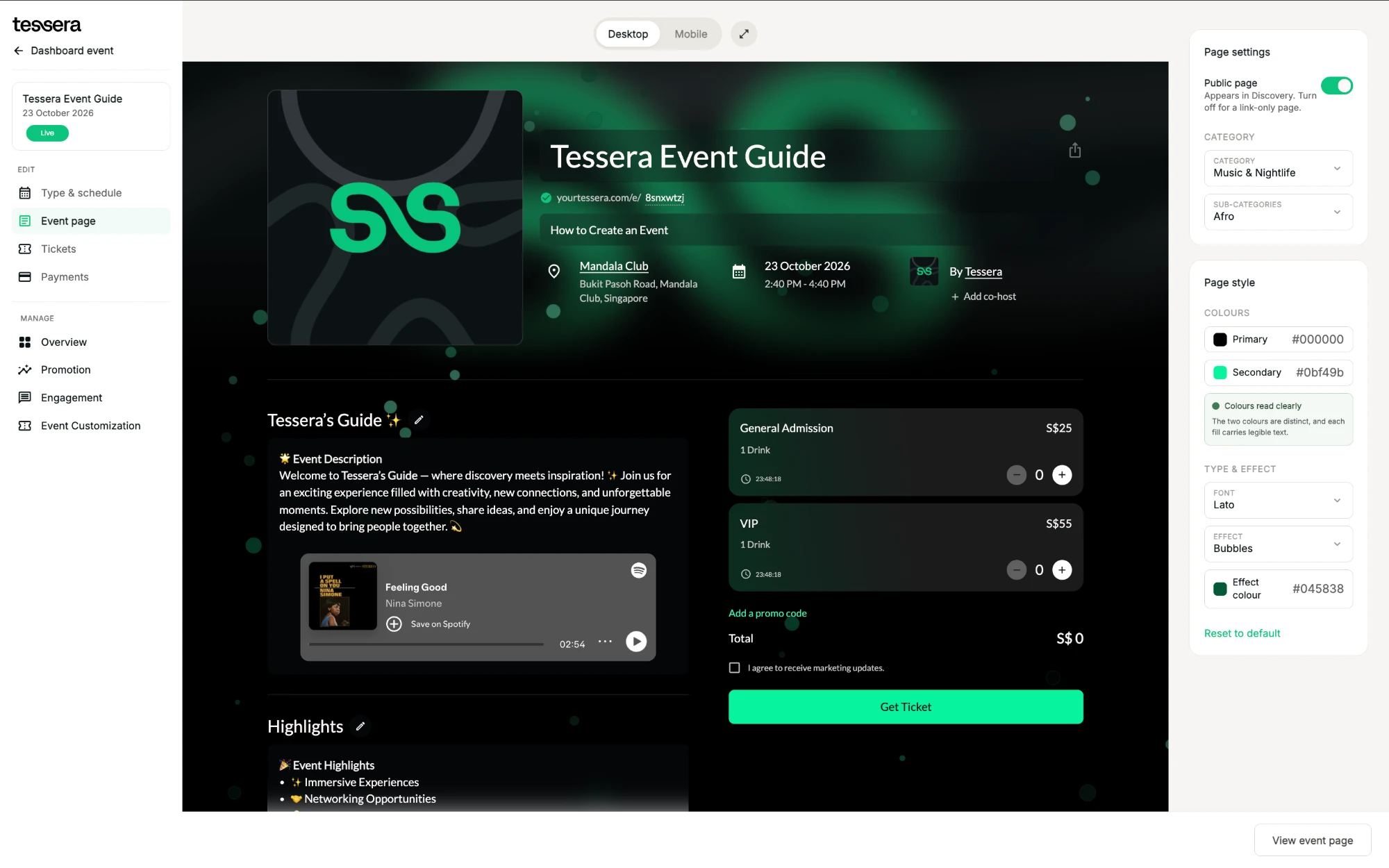
Set your page's colours, font and background effect to match your brand. You can go back to the default look at any time.
Where to find it: Step 2 → Page style
How to do it
- In the Event page step, open Page style.
- Pick a primary and a secondary colour. Check you see Colours read clearly, so text stays readable on your colours.
- Choose a font.
- Choose a background effect and its effect colour.
- To start over, click Reset to default.
Tip: give your tickets matching colours too: see Customise your ticket and QR code colours.
Related
Edit your event page and preview itDesign your page as guests see it, on desktop and mobile.Customise your ticket and QR code coloursGive each ticket type its own look so door staff spot it instantly.Add music, video and social embeds to your descriptionBring your page to life with Spotify, YouTube, SoundCloud, TikTok and Instagram.