

Edit your event page and preview it
In the Event page step you edit your page directly, exactly as guests will see it, so what you see is always the preview. The other steps show a live Guest preview on the right.
Where to find it: Step 2 → Desktop / Mobile toggle
How to do it
- In the Event page step, click any part of the page to edit it: the cover, event name, subtitle, location and organisers.
- Use the Desktop / Mobile toggle at the top to check how the page looks on each screen.
- Click the expand icon next to the toggle to see the page full screen.
- Fix anything that looks off, then move on to Tickets.
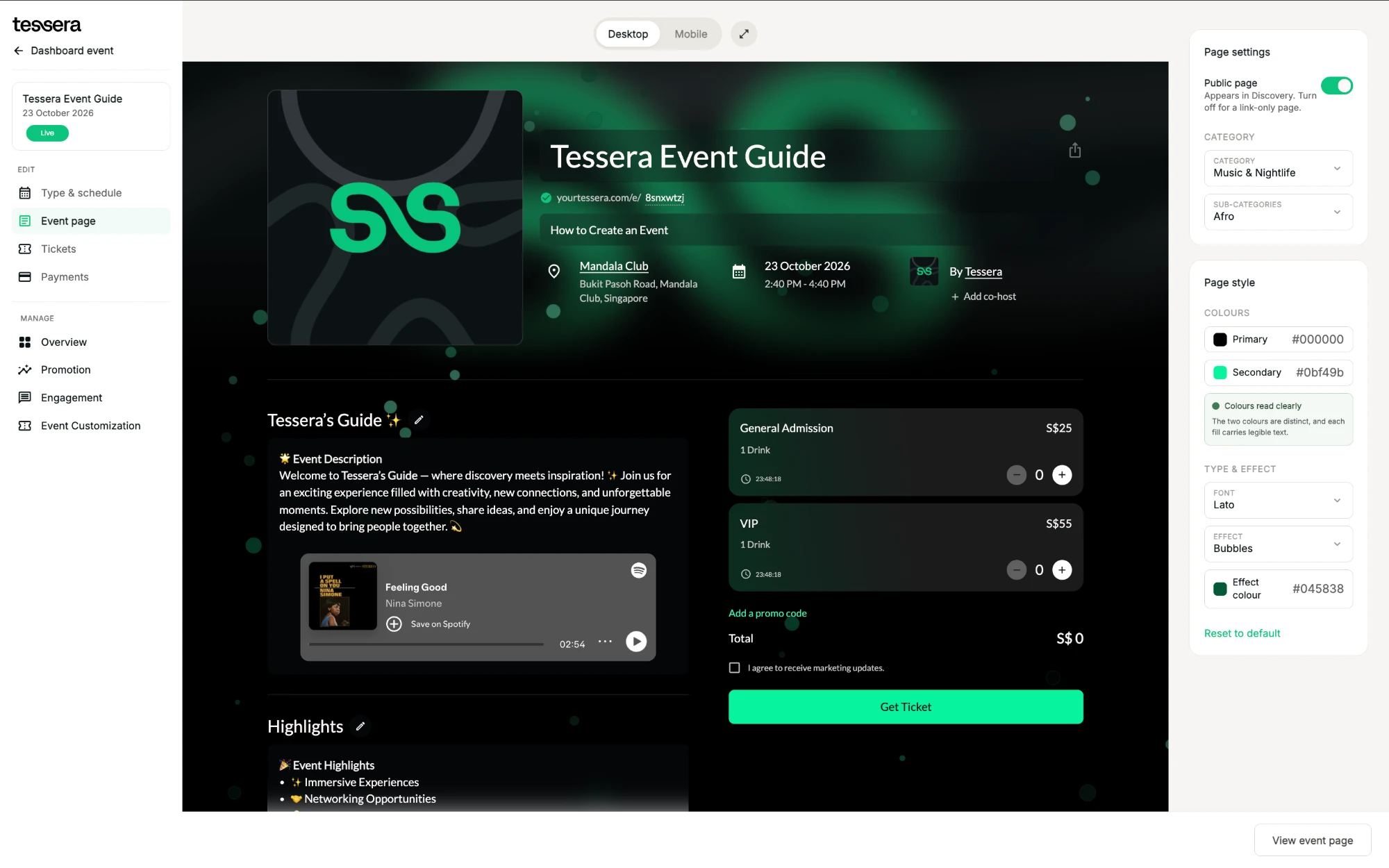
Once your event is live, View event page at the bottom right opens the public page.
Tip: match the page to your brand with Customise your page colours, fonts and effects.
Related
Customise your page colours, fonts and effectsMatch your event page to your brand in a few clicks.Add music, video and social embeds to your descriptionBring your page to life with Spotify, YouTube, SoundCloud, TikTok and Instagram.Add your event locationShow the venue, a map and a Google Maps link on your page.Edit an event after publishingChange dates, times, tickets or details after your event is live.